
 That Guy
Client Features
The controls for Kanata's client features, from pet looting to HD settings.
Pet looting and Auto Sell
What do I need before setting up my pet?
Summon your pet. For Item Ignore and Auto Sell, equip an Item Ignore Pendant on that pet. The pendant is in the Cash Shop for 3,000 NX for 90 days.
Pet Vac is a separate timed service from @vp or @dp. It needs a summoned pet, but the pendant is only needed for the ignore and selling lists.
How do I set up Auto Sell?
- Open Character Info > PET INFO > IGNORED ITEMS.
- Click AUTO SELL to switch to the selling list.
- Drag an item into the window, or use ADD and search for its name.
- Use the OFF / ON button to turn selling on. Select a line and use REMOVE to take it off the list.
The list holds 50 item types per character, shared by that character's pets.
- A listed, eligible equip sells as soon as your pet or Pet Vac picks it up. It does not need a free Equip slot.
- Listed Use, Set-up and Etc items sell as full stacks.
- The pet also checks carried items once a second. Listed equips already in your inventory are swept when your Equip tab is full.
- Selling pauses during a shop, storage, NPC conversation, trade or player shop.
Cash items, quest items, guarded items and restricted equipment are excluded. Equipment with scrolling, hammering, stars or potential is protected from Auto Sell. Ordinary walk-over auto pickup is a player pickup, so it does not use the immediate pet-equip sale.
How do I make my pet ignore items?
Open the same window and switch back to the ignore list. Use ADD to search, MESOS to include or exclude mesos, and REMOVE to delete a selected line. This list also holds 50 item types per character.
With the pendant on a summoned pet, ignored drops are skipped by pet pickup, Pet Vac and walk-over auto pickup. You can still collect an otherwise eligible ignored drop manually with Z.
How do Pet Vac and auto pickup work together?
Auto pickup collects nearby eligible monster drops as you walk over them. Use @ap to open its on/off menu. It works without a pet.
Pet Vac collects eligible monster drops across the map through your summoned pet. Rent it through @vp or @dp, then double-click its token in the Use tab to turn it on or off. It works independently of @ap.
Both follow drop ownership and skip items dropped by players. Z also follows the normal ownership rules. Pet Vac turns off when its service expires, your pet is put away or you enter restricted content such as boss rooms, party quests and instances. Turn it back on after returning to a suitable hunting map.
Selling and protecting items
How do I sell a range of items to an NPC?
- Open an NPC shop and choose the inventory tab you want to sell from.
- Click SELL SELECTED.
- Right-click the first item in the range, then right-click the last item.
- Read the item count and meso total in the confirmation, then accept it.
This works on Equip, Use, Etc and Set-up, up to 255 item stacks at once. Cash, quest, not-for-sale and guarded items cannot be included. If an item in the range cannot be sold or has changed, select the range again. Changing tabs or closing the shop clears the selection.
How do Item Guards work?
Double-click an Item Guard in the Cash tab, drag the item into its window and confirm. Timed guards last 7, 30, 90 or 365 days; a permanent guard also exists. The item remains when a timed guard expires.
A guarded item cannot be dropped, traded, sold, placed in a player shop or sent through Duey. Pets and items that already have an expiry cannot be guarded.
Gathering Bags and the Scroll Satchel
How do I move items into a bag?
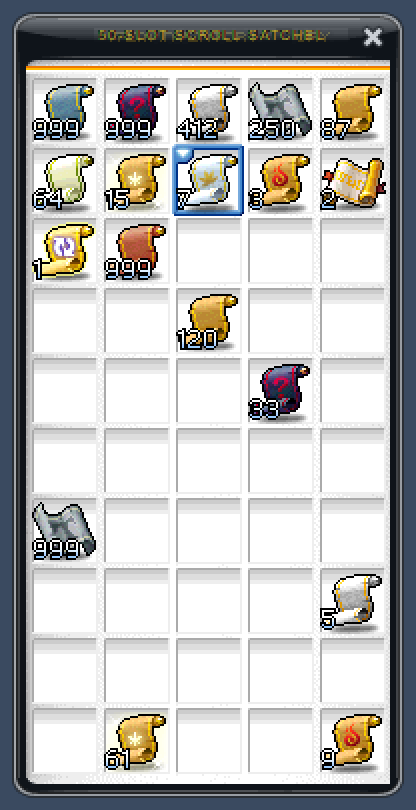
Double-click the bag in your Etc tab. Drag compatible materials from your inventory onto a bag slot. Hold Shift to move one.
To take items out, double-click or right-click a filled bag slot. You can also drag a stack back to your inventory: Shift moves one and Ctrl moves half.
Gathering Bags hold compatible crafting materials. The Scroll Satchel holds scrolls, with 50 slots and up to 999 scrolls in each slot. Eligible scroll pickups go straight into it while there is room. Scrolls needed by an active quest stay in your Use inventory.
Cubes and Nebulites
How do I use the quick Miracle Cube window?
- Double-click a Miracle Cube. Your inventory switches to Equip.
- Click an unequipped item that already has revealed potential.
- Read the rolled lines in the cube window. OK or Enter rolls again; Esc closes it.
For this quick repeat window, keep a Magnifying Glass suitable for the equipment's level for each roll, plus room in Use for Miracle Cube Fragments. The result panel shows the potential and remaining cubes.
That glass requirement belongs to the quick window. The ordinary cube-use route reveals its result directly without consuming a glass, so a Magnifying Glass is not a universal cost of every cube action.
Double-click collected fragments to exchange 5 for a Potential Scroll, or 10 for an Advanced Potential Scroll. If you have at least 10, the exchange makes the Advanced scroll.
How do I open the Nebulite window?
Double-click a Nebulite Socket Creator, a Nebulite, a Nebulite Diffuser, an Alien Cube or a Nebulite Fusion Ticket. Pick or drag the required item, press Start, review the selection and confirm.
- Socket Creator: adds an empty socket to suitable equipment.
- Nebulite: installs a stone in an empty socket.
- Diffuser: removes an installed stone.
- Alien Cube: rerolls a stone and can raise eligible grades. The highest grades reroll without ranking up.
- Fusion: combines two stones. You can also open it through Nebulite Fusion in the Beginner skill tab.
Alien Cubes give Diffuser Fragments; 10 fragments make a Diffuser. Nebulite Boxes open directly. They can be placed on a hotkey or quick slot, with one box opened per press.
Travel
How do I use the Hyper Teleport Rock?
Rent the service through @vp or @dp. Using the rock does not consume it; it lasts until the rental expires.
Double-click it to open the teleport window. ADD MAP saves your current map, MOVE travels to a saved map and DELETE removes a saved entry. You have 13 saved-map slots. You can also enter a player's name to travel to their map in the same channel.
With an active rock, double-click a destination on the World Map. The Monster Book also has Go beside eligible monster locations.
Map restrictions still apply. Boss staging areas, party quests, instances and maps with their own access requirements cannot be bypassed with the rock. Some destinations require their normal entrance route.
Resolution, window mode and HD scaling
How do I change the game size?
Press F10 for the resolution and window menu. You can also choose a resolution in SYSTEM > SYSTEM OPTIONS. The preset list includes sizes from 800x600 through 3840x2160, with available choices depending on your display and scaling settings.
| Key | What it does |
|---|---|
| F9 | Toggles a borderless window |
| F10 | Opens the resolution and HD scaling menu at your mouse |
| F11 | Selects the next usable resolution |
| F12 | Selects the previous usable resolution |
| Alt+Enter | Toggles borderless fullscreen |
How do I make the picture fit my window?
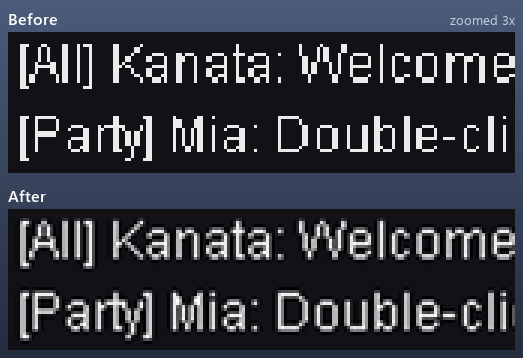
Open F10 > HD scaling > On (scale the game to the window). The same submenu contains Filter, Sharpening, Fit and Window size, plus the resizable-window and aspect-ratio settings.
For a smooth picture, try Bicubic (Catmull-Rom) with Low sharpening. Choose another filter if you prefer a different look. Selecting Off (window follows the resolution) returns to a window sized around the game's selected resolution.
Login and character selection use an 800x600 game canvas, but HD scaling can display that canvas in a larger window or fullscreen. The visible login window is not permanently limited to 800x600.
Monster Book and skills
What can I search in the Monster Book?
Press F8, or use COLLECTIONS in Character Info. You can browse monsters whether or not you own their cards.
- Search by monster, map or item name. Item searches help you find which monsters drop what you need.
- Select a monster to read its information, drops and locations. Drop chances reflect your current eligibility and bonuses;
@dropsgives the live drop lookup too. - Use All, Owned, Missing or Tracked, plus the sorting and region options, to narrow the list.
- Right-click a card for its menu. You can track it, open its drops or maps, and set an owned card as your cover.
- The book has dark mode, a draggable window and account-wide medal progress.
How do I use the extra movement and equipment skills?
Check the Beginner tab in your skill window for skills you have unlocked, including the universal Flash Jump and supported equipment-granted skills. Drag usable skills onto your keys.
Press Jump again in the air for the beginner Flash Jump. Ordinary riding mounts block it; the Battleship and Mechanic armor have their own supported exceptions. Quest skills such as Soul Seeker still need their unlocks.
How does auto-buff work?
Open @autobuff or @ab and turn the listed skills on or off. Eligible buffs are refreshed during their last 5 seconds. Summons are recast after they disappear, with their normal costs and cooldowns.
Keep enough resources for the cast. Auto-buff pays the usual MP, HP, items and other skill costs. The menu only offers supported skills; Dark Sight and ordinary riding skills remain manual.
Kanata Checks and Chaos controls
What do I do when GM Kanata checks me?
During eligible hunting, GM Kanata can start a short check with three questions. Type each answer as instructed. Each question allows 90 seconds and two tries. The timing is random, so there is no fixed countdown to plan around.
A genuine passing check can give one 20-minute reward: EXP, drops, mesos or ATT/Magic ATT. Its strength follows your level, and an already active bonus of that kind is not replaced.
Staff can also use the separate four-symbol Kanata Check window. Pick the four top symbols from the grid in order, then press CHECK or Enter. Left-click selects, right-click removes a selection, Backspace undoes the last pick and Delete clears the selection. Follow its displayed timer and attempts. Closing a check or pressing Esc submits a failed answer; failed checks carry account penalties.
What is on the Chaos HUD?
In Chaos, the HUD shows your lives, active mask and current Jester's Whim with its countdown.
On a Constellation Board, click from star to star to draw connections, click an existing line to remove it, then press Check. The board tells you whether your pattern is accepted and when another attempt is available.
Updating the client
What happens when I start Kanata.exe?
The updater checks the client and downloads required file changes before opening the game. Let it finish applying the update. Its Minimize to tray option hides the update window while it works.
If an update is interrupted, close the game and run Kanata.exe again. If it still stops, include the exact message when asking for help.